Advanced Object Filtering
The Filter textbox in the Explorer Tree filters the objects shown in the tree by name, by wildcard pattern or by a Dynamic LINQ expression.
Filtering Mode
The three right-most toolbar buttons next to the Filter button, added in Tabular Editor 2.7.4, set how the filter applies to the object hierarchy and how the results are displayed.
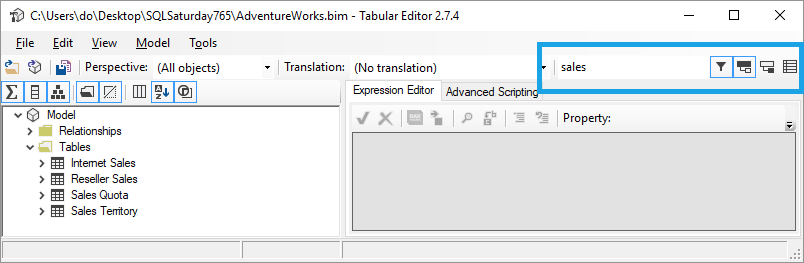
 Hierarchical by parent: the search applies to parent objects, that is tables, and display folders if they're shown. When a parent matches, all its children are shown.
 Hierarchical by children: the search applies to child objects, such as measures, columns and hierarchies. A parent is shown only if at least one of its children matches.
 Flat: the search applies to all objects, and the results are shown as a flat list. Objects with children still show them hierarchically.
Simple search
Type text in the Filter textbox and press Enter for a case-insensitive search of object names. For example, "sales" in the "By Parent" mode gives these results:
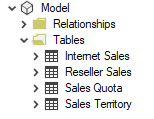
Expanding a table shows all its measures, columns, hierarchies and partitions. In the "By Child" mode, the same search gives these results:
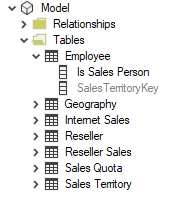
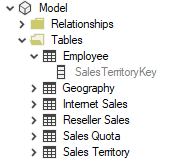
The "Employee" table now appears, because some of its columns contain the word "sales".
Wildcard search
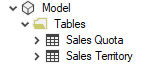
In the Filter textbox, ? matches any single character and * matches any sequence of zero or more characters, and matching is case-insensitive as in simple search. *sales* gives the same results as above, and sales* shows only objects whose names start with "sales".
A search for sales* in the "By Parent" mode gives these results:
The same search in the "By Child" mode gives these results:
Flat search for sales*, with the info columns shown (Ctrl+F1) for details about each object:
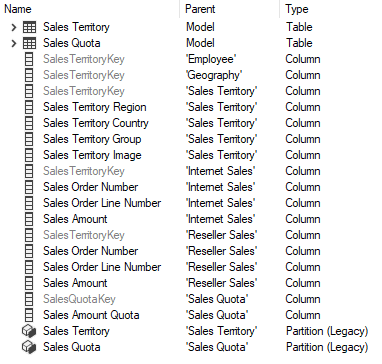
You can place any number of wildcards anywhere in the string.
Dynamic LINQ search
The filter also accepts Dynamic LINQ expressions, the syntax that Best Practice Analyzer rules use. Start the search string with : (colon) to switch to Dynamic LINQ mode. For example, this filter shows all objects whose name ends with "Key" (case-sensitive):
:Name.EndsWith("Key")
Press Enter to apply the filter, which in the "Flat" mode gives this result:
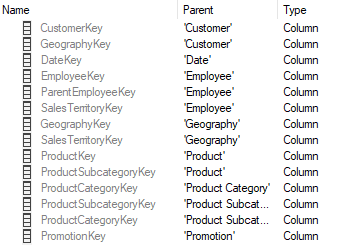
For a case-insensitive search in Dynamic LINQ, convert the string:
:Name.ToUpper().EndsWith("KEY")
or you can supply the StringComparison argument, like:
:Name.EndsWith("Key", StringComparison.InvariantCultureIgnoreCase)
A Dynamic LINQ filter can evaluate any property of an object, including sub-properties. For example, this filter finds all objects whose expression contains the word "TODO":
:Expression.ToUpper().Contains("TODO")
This filter shows all hidden measures in the model that no other object references:
:ObjectType="Measure" and (IsHidden or Table.IsHidden) and ReferencedBy.Count=0
Regular expressions work too, as in this filter that finds all columns whose name contains "Number" or "Amount":
:ObjectType="Column" and RegEx.IsMatch(Name,"(Number)|(Amount)")
In the "By Parent" and "By Child" modes, the display options, the toolbar buttons directly above the tree, also filter the results. For example, the filter above returns only columns, so if the display options hide columns, the tree shows nothing.